 Ironstone
Connect your mailbox
Send emails from your own domain with your business name and address automatically added to the footer.
Steps
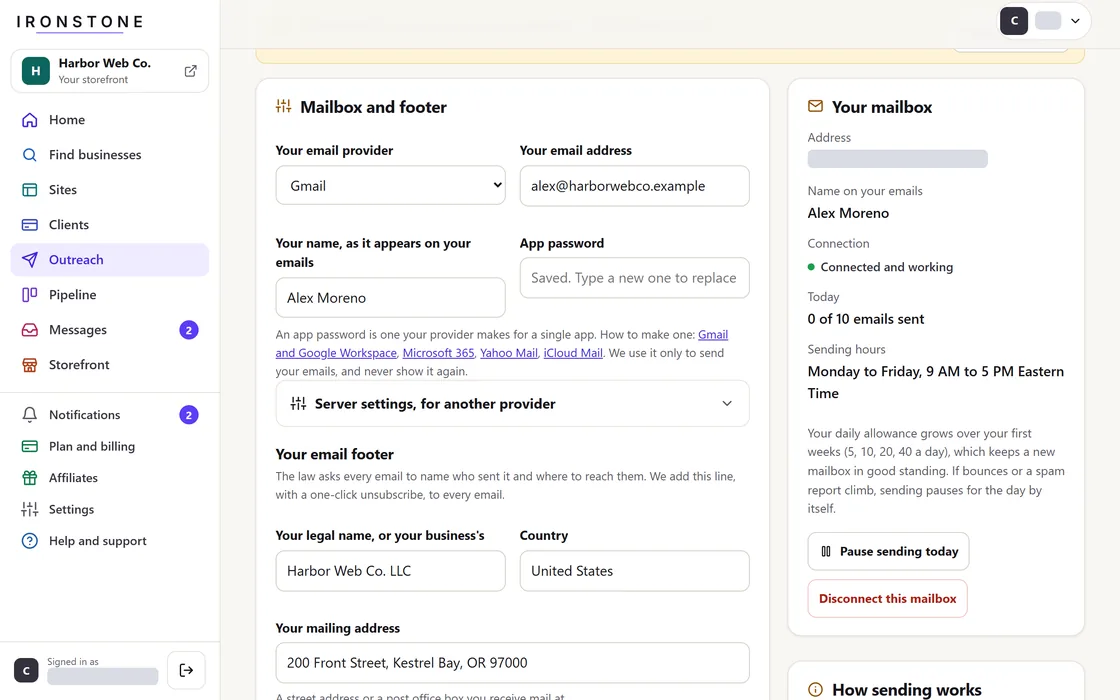
- Access Outreach from the primary dashboard navigation menu.
- Enter your name and email address, then pick your email provider. Mail server settings fill in automatically for listed providers, or you can enter them under Server settings.
- Generate and enter an app-specific password from your mail provider, as account login credentials are not supported.
- Enter your business name, mailing address, and country for email footers, then accept the outreach terms.
- Ironstone verifies your connection within 5 minutes and updates your mailbox status to verified.
Your app password is stored with encryption and never displayed again on any page. Ironstone reads only replies to your sent messages; no other inbox content is accessed or stored.
Frequently asked questions
How to generate an app password
In your mail account's security settings. Google explains it here, and Microsoft explains it here.
Mailbox verification failed
Verify that you entered an app password rather than your standard password and selected the correct provider. For custom providers, confirm the server hostnames and port numbers in Server Settings, then resave.
Inbox data collection scope
Ironstone processes strictly replies to your sent messages. No other inbox data is read or retained.
Next steps
Add businesses to your Outreach tab and review outgoing emails before they go out.
Related guides
Screens and businesses shown are fictional.