 Ironstone
Connecting client domains
Clients connect custom domains directly within their account dashboard by adding a single DNS record with their host.
Steps
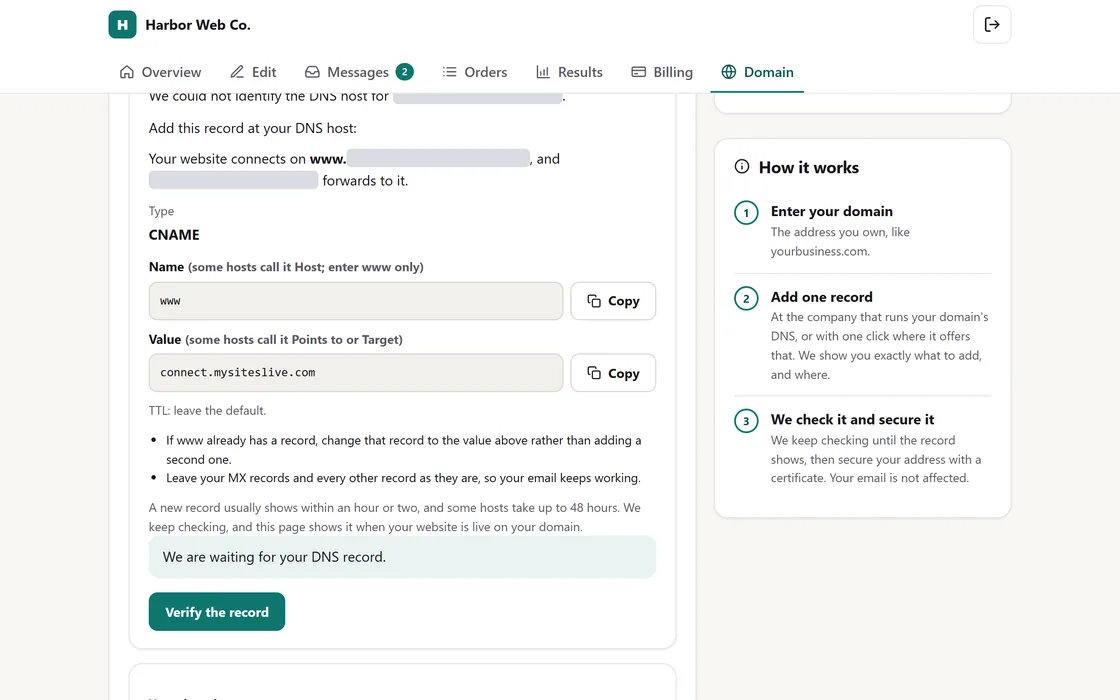
- Businesses enter their domain directly inside their portal.
- The page displays the specific DNS record required and identifies the active DNS provider.
- Businesses set up the required DNS record inside their domain provider account.
- Selecting Verify starts the domain check, showing live progress until the website is live with a secure connection.
Your client retains full ownership of their domain. The site connects once your client has approved it.
Frequently asked questions
Which DNS record is required?
A CNAME record, usually set as www, pointing to connect.mysiteslive.com. The portal shows the exact record values for each domain.
Why is domain verification still pending?
Domain changes can take time to spread across the web. Check that the record matches the portal values, then select Verify again later.
How is the root domain handled?
At first, the main domain may show its old page, like a domain holding page. Businesses should set a redirect to the www address with their provider. The portal tracks the main domain and shows when setup is complete, so both addresses open the website.
Can the site serve traffic directly from the root domain?
Yes, if the domain host supports main domain records. The portal provides the record needed to connect the main domain directly. If not supported, traffic redirects through www.
How do I assist a client with domain setup issues?
Ask for a screenshot of the DNS records in their provider account, then check those values against the portal instructions.
Related guides
Screens and businesses shown are fictional.